Nmap is one of the most popular tools in networking and cybersecurity. One of its powerful features is Operating System Detection, commonly known as OS detection. This feature helps security professionals understand what type of system is running on a target machine.
However, many beginners misunderstand how OS detection works. Nmap does not magically read the operating system from the server. Instead, it analyzes how a system behaves on the network.
In this article, we will explain how Nmap OS detection works, what happens in the backend, and why enabling a firewall can confuse or break OS detection results.
What Is OS Detection in Nmap?
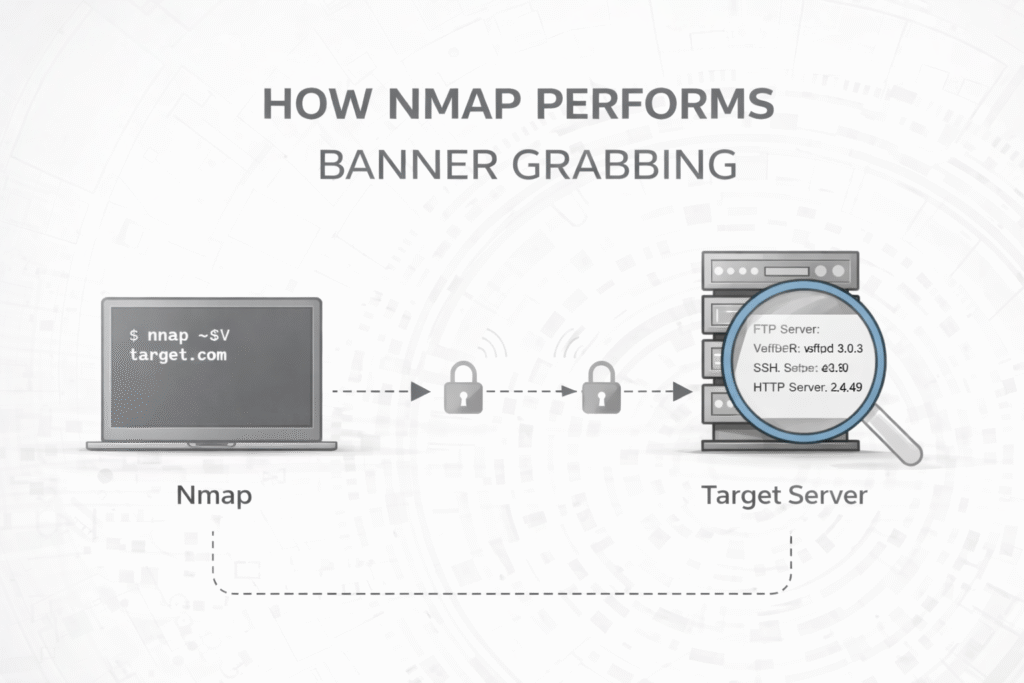
OS detection is a technique used by Nmap to guess the operating system of a target host. It attempts to determine whether the system is running Linux, Windows, macOS, or a network device like a router or firewall.
Nmap does not rely on banners or login pages for OS detection. Instead, it studies the behavior of the system’s TCP/IP stack.
Every operating system implements networking slightly differently. These differences become visible when the system responds to specially crafted network packets.
Why OS Detection Is Important in Cybersecurity
Knowing the operating system helps security teams understand:
- Which vulnerabilities may exist
- What type of security patches are required
- Which exploits are even possible
Attackers also use OS detection to plan targeted attacks. Defenders use it to reduce information leakage and harden systems.
How OS Detection Works Behind the Scenes
Nmap OS detection works using a method called TCP/IP fingerprinting. This means Nmap observes how a system responds to different types of network packets.
The process looks simple, but a lot happens in the background.
Step 1: Sending Multiple Test Packets
Nmap sends a series of specially designed packets to the target system. These packets are not malicious. They are crafted to test how the operating system handles unusual situations.
Each packet may vary in:
- TCP flags
- Packet size
- Window size
- Sequence numbers
Step 2: Operating System Responds
The target system replies to these packets. The responses depend entirely on how the OS networking stack is implemented.
For example:
- Linux may reply with one set of flags
- Windows may reply slightly differently
- Network devices may ignore some packets
These differences act like fingerprints.
Step 3: Fingerprint Matching
Nmap collects all responses and compares them with its internal fingerprint database. This database contains known response patterns for thousands of operating systems and versions.
If a close match is found, Nmap reports the most likely OS along with a confidence level.
This is why OS detection is based on probability, not certainty.
Why OS Detection Is Never 100% Accurate
OS detection depends on clean and honest responses from the target system. In real-world networks, this rarely happens.
Several factors can affect OS detection accuracy:
- Firewalls
- Intrusion Detection Systems (IDS)
- Load balancers
- Network Address Translation (NAT)
Among these, firewalls play the biggest role.
Practical Demo Concept: Firewall ON vs Firewall OFF
A very effective and legal way to understand OS detection is to perform a lab test using your own system and a virtual machine.
The goal is simple:
- Run OS detection when firewall is disabled
- Enable firewall
- Run OS detection again
- Compare the results
When Firewall Is Disabled
When the firewall is off:
- The system responds freely to packets
- Nmap receives clear TCP/IP behavior
- OS detection accuracy is higher
In this case, Nmap can observe:
- Correct TCP flags
- Consistent timing
- Expected error messages
The fingerprint closely matches known operating systems.
When Firewall Is Enabled
Once a firewall is enabled, everything changes.
Firewalls may:
- Drop packets silently
- Modify responses
- Send generic error messages
- Block unusual TCP flags
As a result:
- Nmap receives incomplete responses
- Fingerprint becomes inconsistent
- OS detection confidence drops
Sometimes Nmap may show multiple possible operating systems or fail completely.
What This Teaches Us About Network Security
This behavior proves an important cybersecurity lesson:
Nmap does not detect operating systems directly. It reads network behavior.
If behavior changes, the fingerprint changes. Firewalls act as filters that hide or distort system behavior.
Attacker vs Defender Perspective
From an Attacker’s View
Attackers use OS detection to:
- Reduce attack surface
- Select OS-specific exploits
- Avoid unnecessary noise
When firewalls block fingerprinting, attackers lose valuable information.
From a Defender’s View
Defenders see OS fingerprinting as information leakage.
Security best practices include:
- Filtering unusual packets
- Normalizing responses
- Hiding OS details
The goal is not invisibility, but unpredictability.
Common Myths About OS Detection
- OS detection does not hack systems
- It does not bypass authentication
- It does not access files
- It only observes network behavior
Understanding this clears many misconceptions.
Why This Practical Demo Is Valuable for Learning
This demo:
- Is fully legal
- Requires no exploitation
- Demonstrates real-world security behavior
- Explains why results change
It is ideal for students, cybersecurity learners, and content creators.
Conclusion
Nmap OS detection is a powerful feature, but it is not magic. It works by observing how systems behave on the network.
Firewalls change that behavior. When behavior changes, fingerprints become unreliable.
This is why OS detection results should always be treated as estimates, not absolute truth.
Understanding this concept helps you think like a security professional, not just a tool user.
Disclaimer: This article is for educational purposes only. Perform network scanning only on systems you own or have explicit permission to test.